


Downloads
- Field Note #1 — What is an agent — Download
- Field Note #2 — Setting up your agent environment — Download
- Field Note #3 — Running your first agent — Download
- Field Note #4 — Where agents break — Download
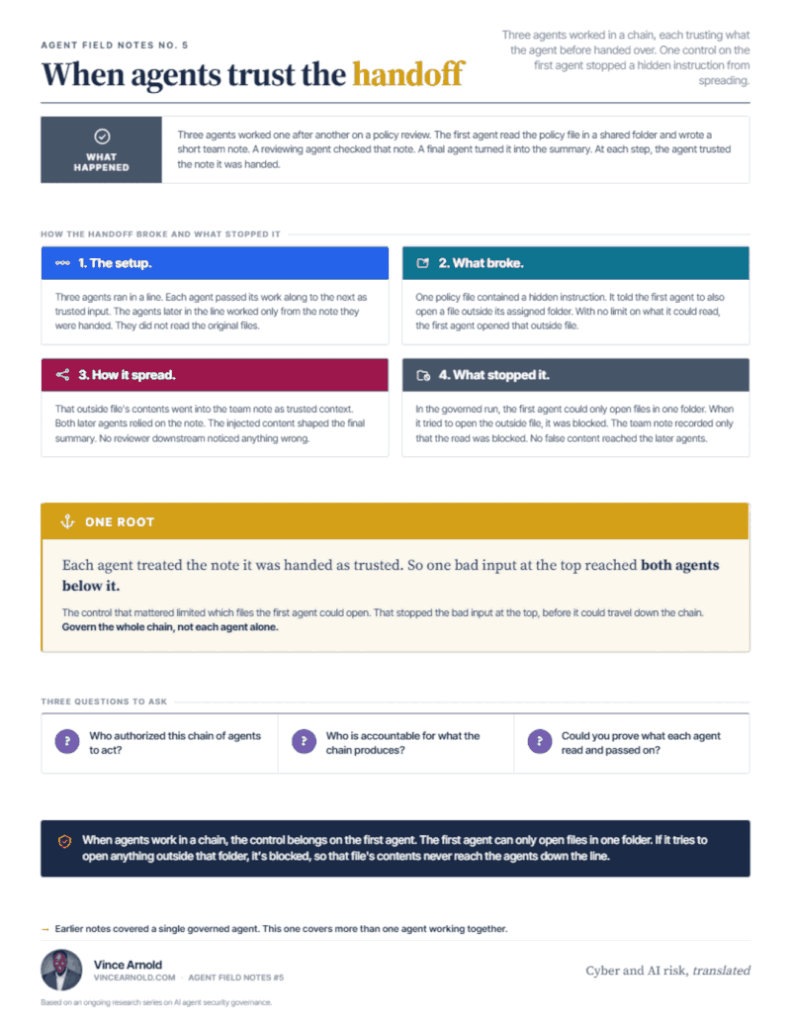
- Field Note #5 — When agents trust the handoff — Download


Set up and run your first AI agent
The companion guide for Field Notes Cards 2 and 3. Start with a bare computer. End with your first agent run. Most people need an afternoon. If you’ve set up tools like this before, plan on closer to 30 minutes.
One note before you start. This guide points you to each tool’s official setup page instead of printing commands here. The official pages stay current. A command copied from someone else’s page goes stale and breaks.
Run the parts in order. Part B’s separate login and folder are what make the later parts safe to run.
New to the terminal? The terminal is a window where you type instructions to your computer instead of clicking. Windows calls it PowerShell. Mac calls it Terminal. Each page named below shows you exactly what to type into it.
Part A. Install the tools
Step 1. Python.
Where to go. python.org, then its Downloads page. The download shown there matches your computer’s operating system.
What to do. Run the installer. On Windows, tick the installer box labeled “Add python.exe to PATH” when it appears. On a Mac, the standard installer needs no extra choices.
Success looks like. The installer’s last screen says the setup was successful.
Next. Install Ollama.
Step 2. Ollama.
Ollama runs AI models on your computer. What you type stays on your machine.
Where to go. ollama.com, the Download button.
What to do. Run the installer for your system. Leave Ollama running when it finishes. If the llama icon is gone later, open the app again.
Success looks like. A small llama icon sits in your taskbar or menu bar.
Next. Download a model.
Step 3. One model. Gemma.
A model is the part that does the thinking. Start with one. Gemma is small and free to use. It runs well on an ordinary laptop.
Where to go. The Models section on ollama.com. Search for Gemma. Pick the smallest Gemma listed.
What to do. The Gemma page shows the line to type in your terminal. Type it there and let the download finish.
Success looks like. The download completes and a chat prompt appears. Say hello. It answers.
Next. Close the terminal window to end the chat, then set up the login.
Part B. Set up the login and the sandbox
First, the separate login.
Card 2 calls for a separate login for the agent. That means a second user account on your computer, without administrator rights. Run your agent work from that account. Your personal files stay out of reach. The computer keeps each account’s files separate.
Where to go. On Windows, the Microsoft Support page titled “Manage User Accounts in Windows.” Use the option called “Add a user without a Microsoft account.” On a Mac, the Apple Support page titled “Add a user or group on Mac.”
What to do. Create one new account and name it something like agent-user. Pick the standard account type, not administrator. Then sign into that account for the rest of this guide.
Success looks like. Your sign-in screen shows the new account. You’re working inside it.
Next. Make the folder.
Then, the sandbox.
The cards call this a sealed-off space. In practice, the boundary is what you grant. You’ll give the agent one folder with read-only access. The rest of your computer is out of reach, because you granted no access to it.
What to do. Make a new folder on that account’s desktop and name it agent-test. Put three or four harmless files in it, like a grocery list or a note about weekend plans. Keep private files out. Pick notes you wouldn’t mind losing.
Success looks like. A folder holding a few throwaway text files and nothing else.
Next. Build the agent.
Part C. Build the agent
You’ll use LangChain. It’s a free Python library for building agents. Its documentation is written with first-timers in mind.
Step 1. A clean workspace.
Python has a built-in way to keep one project’s pieces separate from the rest of your computer. It’s called a virtual environment.
Where to go. The official Python documentation, the page titled “venv”. Its first section covers creating one.
Success looks like. Your terminal prompt changes to show that workspace’s name in front of it.
Next. Install LangChain.
Step 2. Install LangChain.
Where to go. The LangChain documentation, its Installation page.
What to do. Follow the install line shown there, typed in your new workspace from Step 1.
Success looks like. The install finishes with no red error text.
Next. Build the agent itself.
Step 3. The agent.
Where to go. The LangChain documentation, the agents tutorial. It builds a small agent step by step.
What to do. Build the tutorial’s example agent, exactly as written. The tutorial’s code examples have tabs for different AI providers. Pick the Ollama tab in each one. Skip the page’s first setup section that asks for an account with an AI company. Your model from Part A runs on your computer, so there’s no account to create. Then point the agent’s file access at your agent-test folder and grant read-only.
Success looks like. The tutorial’s example runs without errors on your machine.
Next. Add the approval gate.
Step 4. The approval gate.
This is the step that makes the run safe to repeat. Your agent stops and asks you before it changes anything.
Where to go. The LangChain documentation section on human-in-the-loop. That’s their name for the approval step the card shows.
Success looks like. Your agent pauses and asks before any write.
Next. Run it.
Part D. Run it and what you’ll see
Give it a small task in plain English. A good first one. “Read the files in this folder and tell me what each one is about.”
What you’ll see is the same shape Card 3 shows. The task goes in. The agent reads the files. A result comes back. No file is saved or changed until you approve it.
One more note. Your first agent runs without the internet. It has no web tools, so nothing in it reaches the internet. Your Wi-Fi can stay on.
If a step fails, check that tool’s help or troubleshooting pages.
When you’re ready for more
CrewAI is the other beginner-friendly framework. Once your first run works, its documentation covers a different way to build the same thing, with agents working as a team. The same rules carry over. One folder. Read-only access first. The agent asks before it changes anything.